Add to Chrome
Video Speed Controller logoInstalled extensionVideo Speed Controller
View in Chrome Web Store

Your video. Your pace. Sound you can hear.

Video Speed Controller helps you watch at a pace that suits you. Speed up familiar material or slow down a difficult explanation, then use Sound Booster if the tab is too quiet. Two separate controls for a more comfortable watch: playback speed and listening volume.

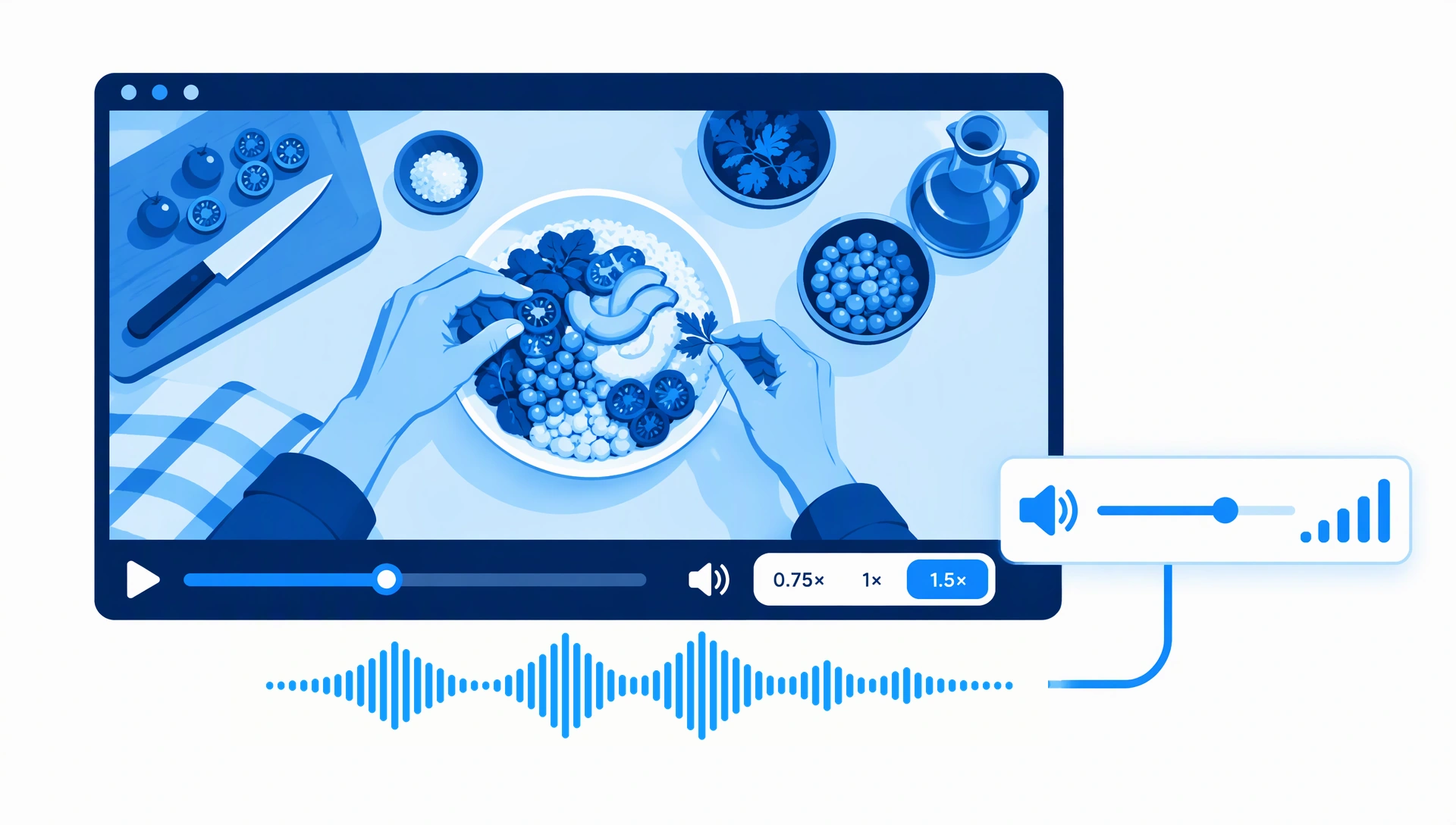
A cooking tutorial with playback speed choices and a separate blue sound volume control connected by an audio waveform.

A better pace for every video

Three everyday ways to combine playback speed with comfortable volume.

1

A lecture at your pace

  1. Open a lecture on a site supported by Video Speed Controller.
  2. Try a slightly faster speed for material you already know.
  3. If speech is too quiet, raise the tab volume gently with Sound Booster.

Good for: familiar lessons and long presentations.

2

A tutorial worth slowing down

  1. Play the part you want to understand or follow.
  2. Choose a slower speed and replay the difficult section.
  3. Adjust quiet audio with Sound Booster without changing your chosen pace.

Good for: step-by-step demonstrations and detailed explanations.

3

Listen comfortably, not just faster

  1. Start at normal speed and a comfortable listening level.
  2. Increase the pace gradually; slow back down if words become hard to follow.
  3. Use only as much volume boost as needed. Reduce it if the sound distorts.

Good for: interviews, talks and everyday watching.

Works together

Choose the pace. Bring up the sound.

Video Speed Controller changes playback speed on supported videos. The Sound Booster extension adjusts live tab volume. They work independently: set the speed in one extension and the volume in the other. There is no automatic connection or file transfer.

  • Speed up familiar parts without rushing new material
  • Slow down explanations you want to follow closely
  • Boost quiet tab audio gently and keep listening comfortable

Playback support depends on the website and extensions. These controls do not save a faster or louder video file. For a file on your device, use the website’s file tools instead.


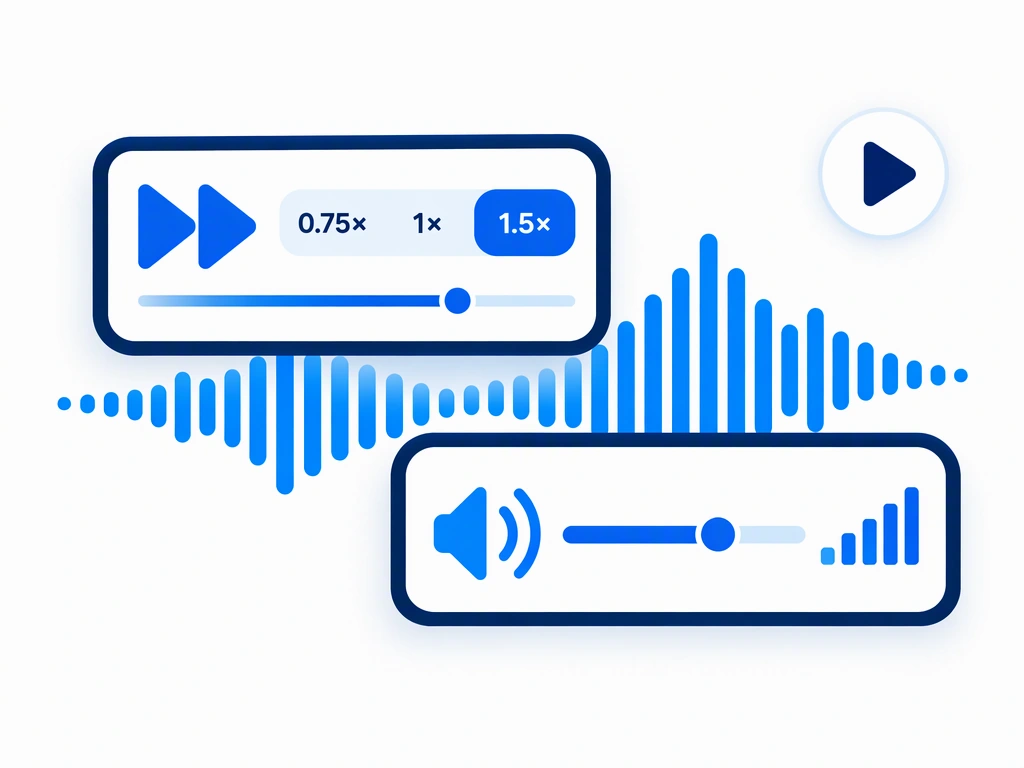
Two separate blue control panels for video playback speed and sound volume, connected by an audio waveform.

Set up your first comfortable watch

0 of 4 done

  1. Pin Video Speed Controller

    If you have installed it, open Chrome’s extensions menu using the puzzle icon and pin Video Speed Controller so it is easy to find.

  2. Choose a video and set the pace

    Open a supported video and use Video Speed Controller to choose a speed. Start with a small change; return to normal speed whenever you need to.

  3. Add Sound Booster for quiet tabs

    If the video is too quiet, install or open the Sound Booster extension on the playing tab. Increase volume gradually rather than jumping to a high boost.

  4. Fine-tune speed and volume

    Replay a short section. If speech is hard to follow, slow down. If you hear distortion, lower the boost. These changes affect live listening, not the original video file.

Keep going

Help for live watching, plus tools for your own files.