
Why audio tools and a dark PDF reader belong in the same workflow
Sound Booster is built for the moments when volume, balance or format get in the way of listening. Dark PDF Reader is built for the moments when a white page gets in the way of reading. Many real sessions need both: a quiet lecture and the slide deck, a song clue and the album booklet, a podcast edit and the guest’s brief.
Neither tool asks for an account. Neither uploads your file to finish the job. That shared design is the practical link — not a forced cross-sell. Use Sound Booster when the problem is audio. Open Dark PDF Reader when the problem is glare, late-night study or a long document beside the player. Both sit in the same corner of the browser: a tab for sound, a tab for reading.
What Dark PDF Reader actually does
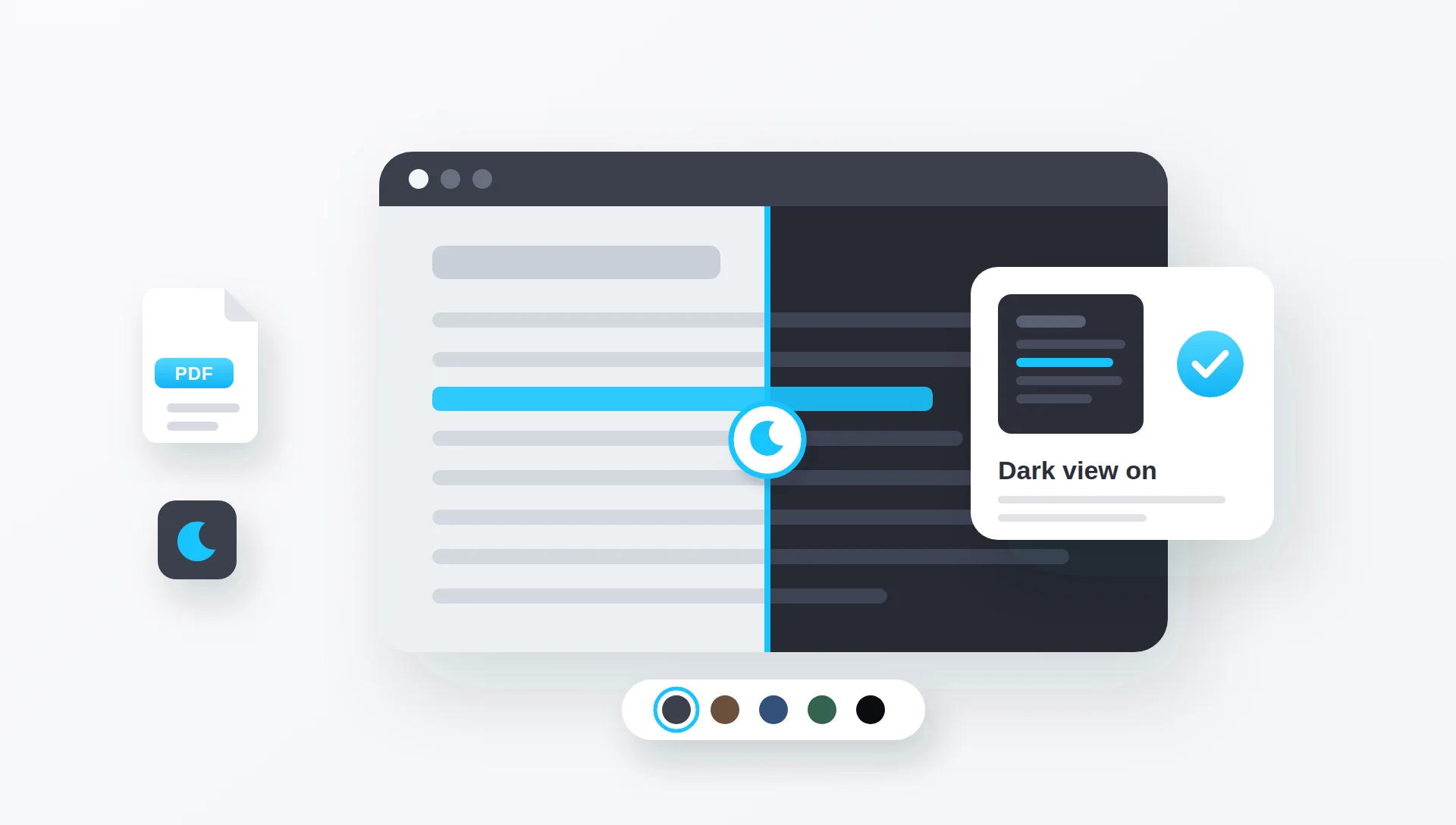
Dark PDF Reader (on dark-shiftmode.com) opens a PDF in your browser and shows it in a soft dark view. You pick a tone — Classic, Warm, Blue, Green or OLED — zoom as needed, and close the file when you are done. The original document stays untouched on your device.
It is a viewer with a calmer display, not a permanent converter that rewrites the file. Themes apply only while you read. That matters when you later share the same PDF: you are not accidentally sending a darkened export unless you choose a separate save workflow later.
Drop it into Dark PDF Reader, choose a tone, and read without a white full-screen glare.
Use Volume Booster or the Chrome extension so the lecture or clip is audible first.
Listen with Sound Booster tools, read accompanying notes in Dark PDF Reader — same privacy idea on both sides.
Situations where the pair makes sense
- Online lectures. Boost thin voice audio, then follow the PDF slides in a dark view so the second screen is not a lamp.
- Music research. After Music Identifier returns a title, open interviews, setlists or scanned notes without a bright page fighting the room light.
- Podcast and voice work. Keep the brief or script readable at night while you trim, EQ or check loudness in the browser.
- Long editing nights. Audio tools handle the sound; Dark PDF Reader handles the documents that sit beside them.
If you only need louder playback, stay on Sound Booster. If you only need a darker theme on every website, the optional Dark Mode Chrome extension covers that. The PDF reader is the piece that matches “open a file, process locally, leave.”
How to use Dark PDF Reader
The flow mirrors other local browser tools you already use here.
- Add the PDF. Choose a file or drag it into the drop area on dark-shiftmode.com.
- Pick a tone. Try Classic for neutral contrast, Warm for evenings, Blue or Green for a softer tint, OLED when you want the darkest field.
- Read and close. Zoom, move through pages, then close the tab. Nothing is written back into the original file by the viewer itself.
Very large files can take a moment to draw, especially on older phones. You do not need the Chrome extension for the PDF tool; the extension is separate and optional for darkening other websites.
The rest of the Dark Mode toolkit, matched to audio work
Dark PDF Reader is one tool on Dark Mode (dark-shiftmode.com), a small set of browser tools built on the same idea as Sound Booster: open a file, work with it on your device, and leave. A few of them fit naturally beside an audio session:
- Dark Notepad. Keep timestamps, track titles, quotes or editing notes next to the player while a clip plays.
- Text Reader. Read a transcript, a lyric sheet or show notes in a calm view instead of a bright text file.
- EPUB Reader. Keep a book open beside an audiobook or a study playlist without a white page lighting up the room.
- Focus Timer. Time a study block or a listening session without adding another app to the screen.
The site also has image and PDF utilities such as Image Color, Convert PDF and Dark Screenshots for jobs that have nothing to do with audio. You do not need any of them to use Sound Booster, and Sound Booster does not need them either; the connection is the working style, not a required stack.
The two Chrome extensions follow the same split. The Sound Booster extension raises and shapes tab audio. The Dark Mode extension changes how pages look. They are independent, so you can install one, both or neither.
Privacy, limits and what it is not
Dark PDF Reader is designed so rendering stays in the browser. Sound Booster audio tools follow the same principle for volume, EQ, converters and analysis. That is the honest overlap: local work, no account wall for the core job.
Limits to keep in mind:
- It measures comfort of display, not the “quality” of a scanned PDF the way Audio Quality Check measures LUFS and peaks.
- It does not identify songs — that remains Music Identifier and the How to Find a Song guide.
- Very heavy scans may feel slower on older phones because pages are drawn on the device.
A simple workflow that stays coherent
One session, clear jobs:
- Make the audio usable with Volume Booster, Equalizer or Bass Booster if the problem is level or tone.
- If you need the track name, use Music Identifier on a clean original clip — see the song guide.
- When notes, scripts or PDFs join the session, open them in Dark PDF Reader instead of staring at a full white page. For plain text or quick notes, the same site has a text reader and a notepad.
You are not required to use every product. The useful idea is a small set of browser tools that respect the same boundary: the media stays yours while you work. For more real-life setups, see Sound Booster for Every Situation and the step-by-step Audio Workflows & Recipes.
Questions that come up along the way
Is Dark PDF Reader part of Sound Booster?
No. It lives on dark-shiftmode.com. Sound Booster links to it because the privacy model and the “long session” use case line up — audio on one side, calmer reading on the other.
Does opening a PDF upload my document?
The reader is built to process the file in the browser. Treat it like other local tools: if you handle sensitive contracts, confirm behavior in your own network panel as you would for any web app.
Can I use it while the Sound Booster extension is installed?
Yes. They solve different problems. The volume extension affects tab audio; Dark PDF Reader changes how a PDF is displayed on its page.
What if I only need dark websites, not PDFs?
dark-shiftmode.com also describes an optional Chrome extension for dark themes on other sites. The PDF reader does not require that extension.
Which other Dark Mode tools are useful during audio work?
Dark Notepad for timestamps and edit notes, Text Reader for transcripts and lyric sheets, EPUB Reader for books you read while listening, and Focus Timer for study or listening blocks. They are optional and separate from Sound Booster.
Do the Sound Booster extension and the Dark Mode extension conflict?
They do different jobs: one adjusts tab audio, the other changes page colors. They are installed independently, and you can use either one without the other.
Where do I start if the lecture is quiet and the slides are harsh?
Fix audibility first with Volume Booster or the extension, then open the slide PDF in Dark PDF Reader. Order matters less than not fighting both problems with one tool.
Keep the session calm.
Boost what you need to hear. Read what you need to see — in a darker view when the room is dim. Two focused tools, one shared idea: work stays on your device.
Open Dark PDF Reader ↗