

Add to Chrome
Installed extension Picture in Picture: floating video player

Watch in a floating window. Hear it clearly.

Picture in Picture keeps a video on top of every other window, so you can keep working while it plays. Sound Booster fixes the other common problem: the video is too quiet to follow. Use both and you get a floating player at a usable volume.

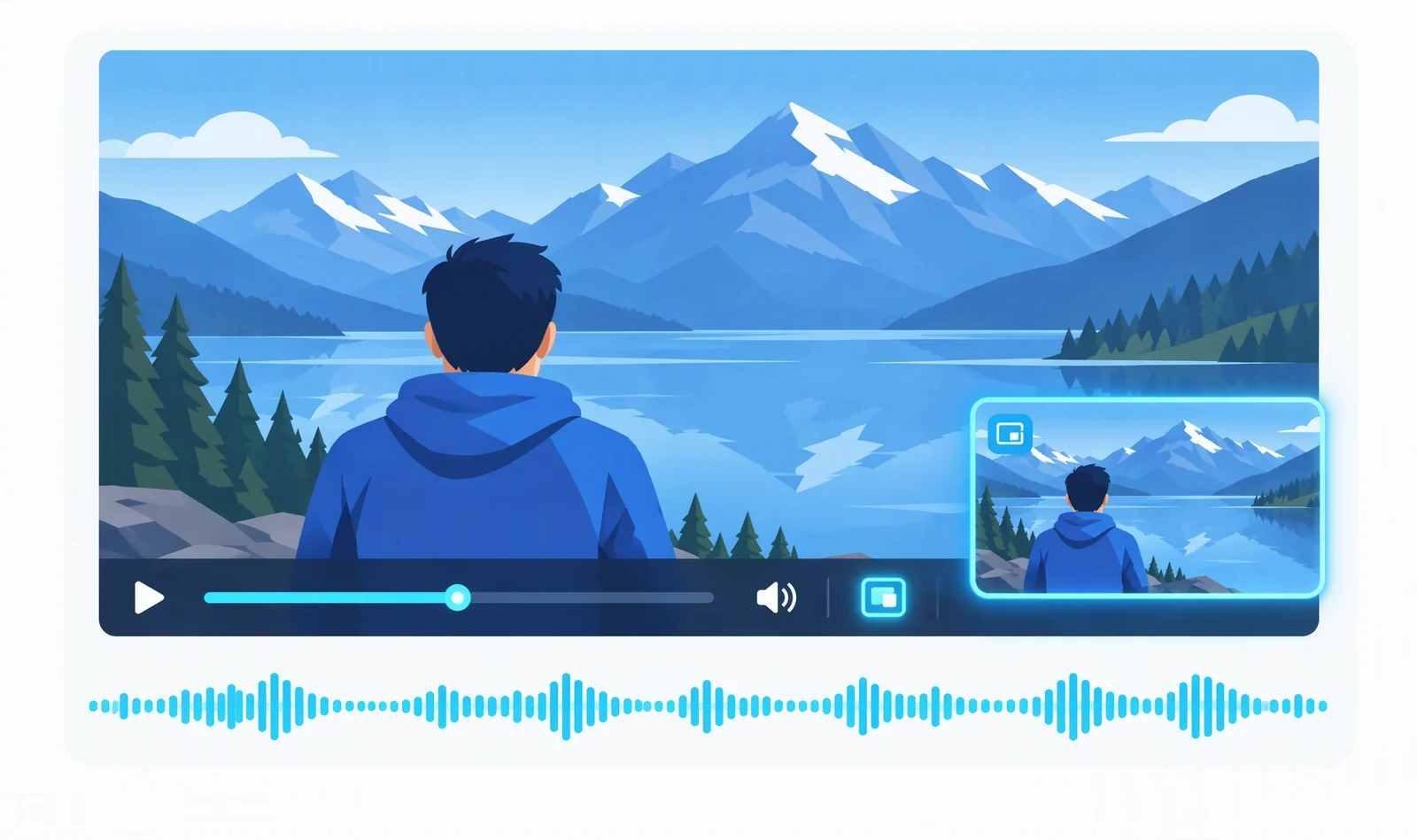
Video player in a browser window showing a hiker by a lake, with the picture-in-picture button highlighted in the control bar and a floating picture-in-picture window in the corner.

How the floating player works in practice

Three everyday cases. Each one starts in a normal browser tab.

1

A lecture while you take notes

  1. Open the recording in a tab and press play.
  2. Click the Picture in Picture button. The video floats in the corner.
  3. Switch to your notes app. The video stays on top and keeps playing.

Good for: lectures, webinars, tutorials with a code editor open.

2

A quiet clip, boosted first

  1. Open a video that is hard to hear and click Sound Booster.
  2. Move the slider to about +6 dB and compare a few seconds.
  3. Pop the video out. The floating window keeps the boosted sound.

Good for: online courses, interviews, and clips recorded at low levels.

3

Music or a stream while you work

  1. Start a video or livestream in a tab.
  2. Float it with Picture in Picture and minimise the tab.
  3. Adjust the sound with Bass Booster or the Equalizer if the mix feels thin.

Good for: background video, music sessions, long streams.

Works together

Want the video louder in a floating window?

Picture in Picture handles the window. Sound Booster handles the volume. Float a video, then raise its level from the same tab, without going back to the original page.

  • Boost a quiet video to +6 dB before you float it
  • Keep the boosted sound while you work in other apps
  • Convert a clip that will not play in your player
Floating video window above a white volume control set to plus 6 dB, a cyan waveform rising beside it, and a video file icon with an arrow.

Start with the quick win

0 of 4 done

  1. Pin Sound Booster to your toolbar

    Click the puzzle icon in Chrome, then the pin next to Sound Booster. From now on it is one click from any tab.

  2. Boost a video you are watching

    Open any video that is too quiet, click Sound Booster and move the slider to +6 dB. Play a few seconds and compare. Boosting only the current tab is explained here.

  3. Pop the video out

    Click the Picture in Picture icon. The video floats above your other windows and keeps the boosted sound while you work in other tabs and apps.

  4. Shape the sound

    Add low end with Bass Booster or cut muddy frequencies with the Equalizer.

Keep going

Three places to continue from here.